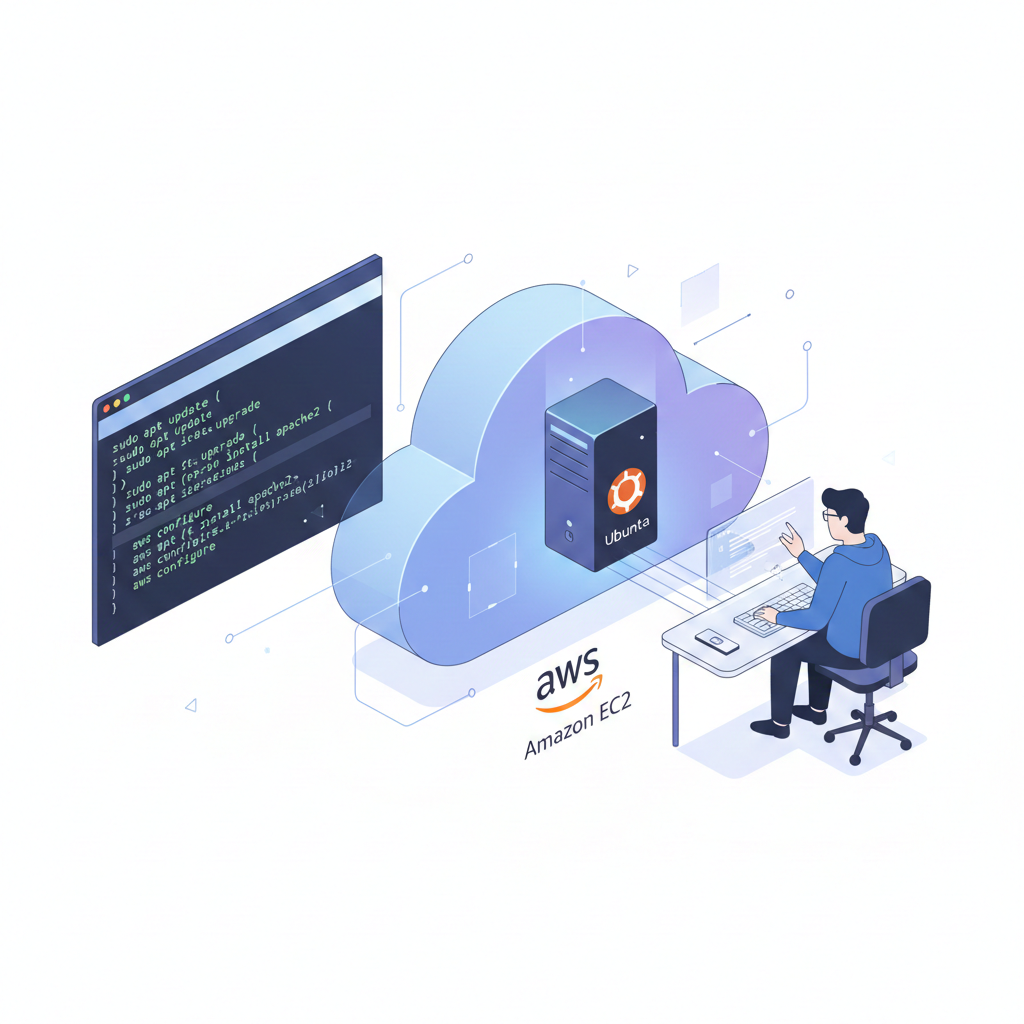
Teachora is an online teaching platform that requires secure, high quality, and real time video conferencing to connect educators and learners seamlessly. To support this requirement, I deployed the Jitsi Meet SDK on an AWS EC2 instance and integrated it into the Teachora application hosted at myteachora.com.
This approach gives full control over video infrastructure, ensures privacy, and allows the platform to scale as the Teachora user base grows.
This blog explains the overall architecture, EC2 setup, Jitsi installation, and how everything works together inside the Teachora app.
Why Jitsi Meet SDK for Teachora
Jitsi Meet is an open source video conferencing solution that supports audio, video, chat, screen sharing, and session recording. By using the Jitsi Meet SDK, Teachora can embed video calling directly into the platform while maintaining consistent branding and user experience.
Key benefits for Teachora:
- No per minute video calling costs
- Full control over data and privacy
- Custom UI and feature configuration
- Secure self hosted infrastructure
- Smooth integration with web and mobile apps
System Architecture Overview
Teachora’s video conferencing architecture is built around an AWS EC2 instance running the Jitsi Meet server. Teachers and learners connect through the Teachora app, which communicates with Jitsi using secure HTTPS and WebRTC protocols.
Main components:
- AWS EC2 instance running Ubuntu
- Jitsi Meet server
- Nginx reverse proxy
- Custom domain and SSL certificate
- Teachora web and mobile apps using Jitsi SDK
Step 1: Creating an EC2 Instance
The first step is setting up an EC2 instance from the AWS Management Console.
Recommended configuration:
- Operating system: Ubuntu 20.04 or 22.04 LTS
- Instance type: t3.medium or higher for production usage
- Storage: At least 30 GB SSD
- Security group configuration:
- TCP port 80 for HTTP
- TCP port 443 for HTTPS
- UDP port 10000 for Jitsi media traffic
- TCP port 22 for SSH access
Once the instance is live, connect to it securely using SSH.
Step 2: Installing Jitsi Meet on EC2
After connecting to the server, update the system and install Jitsi Meet.
Installation flow:
- Configure the server hostname with your domain
- Add the official Jitsi package repository
- Install Jitsi Meet packages
- Configure firewall rules
- Enable SSL using Let’s Encrypt
During setup, enter the Teachora video domain and enable SSL. A valid domain is required for WebRTC to function properly in modern browsers.
After installation, open the domain in a browser to verify the Jitsi Meet interface is running successfully.
Step 3: Securing the Teachora Video Platform
Security is a top priority for Teachora to protect teachers, learners, and session data.
Recommended security measures:
- Enable JWT based authentication
- Restrict room creation to authorized Teachora users
- Assign roles for teachers and learners
- Disable anonymous access
- Apply strict firewall and server hardening rules
- Keep the server and Jitsi packages updated
JWT authentication ensures that only users from myteachora.com can create or join video sessions.
Step 4: Integrating Jitsi Meet SDK into Teachora
Instead of redirecting users to an external meeting page, Teachora uses the Jitsi Meet SDK to embed video conferencing directly inside the application.
Integration flow:
- Teachora backend generates a secure JWT token
- The app launches a Jitsi meeting using the SDK
- The token authenticates the user and role
- Teachers and learners join the same session securely
The SDK enables:
- Custom meeting controls
- Branded UI matching Teachora
- Screen sharing and chat
- Session events and analytics
This creates a smooth virtual classroom experience fully integrated into Teachora.
Step 5: Scaling and Performance Optimization
As Teachora grows, the video infrastructure must scale reliably.
Best practices include:
- Monitoring CPU, memory, and network usage
- Increasing instance size during peak hours
- Using autoscaling groups for high traffic
- Running separate services for recording and streaming
- Optimizing video quality based on network conditions
For large scale usage, multiple Jitsi servers can be deployed behind a load balancer to ensure high availability.
Final Thoughts
Deploying Jitsi Meet SDK on AWS EC2 is a strong foundation for Teachora’s video conferencing needs. It provides flexibility, security, and scalability while keeping operational costs under control. With proper authentication and infrastructure planning, Teachora can deliver a reliable and engaging online teaching experience through myteachora.com.