Creating user interfaces (UIs) that are dynamic, scalable, and adaptable to evolving requirements is essential in app development. As the need for cross-platform development continues to grow, developers are seeking innovative methods to design flexible UIs that can be updated seamlessly without requiring app store approvals or direct updates to the client-side application. One increasingly popular solution in the Flutter community is the Server-Driven UI (SDUI) approach.
Flutter, Google’s powerful UI toolkit, enables developers to create natively compiled apps for mobile, web, and desktop platforms from a single codebase. With SDUI in Flutter, UI components are rendered on the server and then sent to the client for display. This approach provides a robust solution for building dynamic, adaptable, and scalable UIs, making it an excellent choice for modern app development. Let’s delve into how SDUI enhances flexibility and scalability in Flutter applications.
How Does Server-Driven UI (SDUI) Work in Flutter?
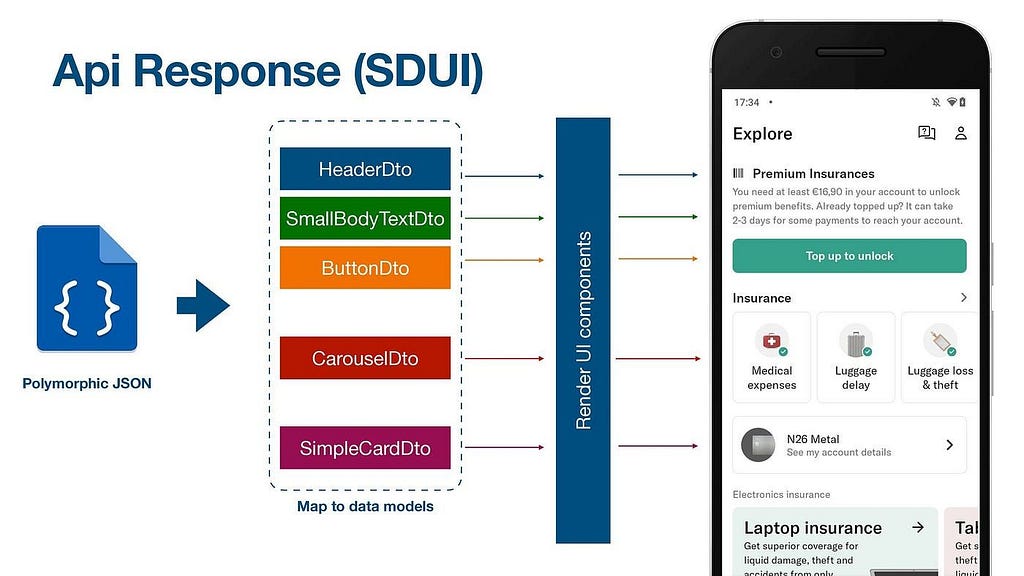
SDUI in Flutter operates through the following key steps:
- Defining UI Components:
UI components, such as Flutter widgets, are defined server-side using a markup language or a UI framework. These components are designed to be modular and reusable, adhering to Flutter’s widget hierarchy. - Composing the UI:
When a client requests a specific UI screen, the server dynamically assembles the screen using the predefined UI components. This composition is based on the incoming request data and business logic. The server generates the necessary Flutter widgets and their attributes to create the complete UI layout. - Delivering the UI:
The server sends the composed UI to the client in a serialized format, such as JSON. The Flutter app on the client side then interprets this data and renders the UI by reconstructing the specified widgets and their properties, without needing to define the components or layout logic locally. - Updating the UI:
When app requirements evolve, the server can update the UI components and their attributes dynamically. These updates are instantly reflected in the UI screens delivered to the client, enabling real-time changes without modifying the client-side app. This makes SDUI in Flutter an agile solution for adapting to shifting business needs.
Advantages of Server-Driven UI (SDUI) in Flutter
- Flexibility:
SDUI enables dynamic updates to the UI without requiring changes to the client-side Flutter application. This adaptability allows for rapid iterations and updates to the UI without needing app store approvals or manual client-side updates. By reducing development time and effort, SDUI supports faster responses to evolving business requirements. - Scalability:
In SDUI, the server handles the composition and rendering of UI components, significantly reducing the processing burden on the client-side Flutter app. This enhances performance and scalability, especially in applications with large user bases or complex interfaces, as the server manages the intensive tasks, allowing the client app to focus on other functionalities. - Reusability:
UI components in SDUI are designed to be modular and reusable, following Flutter’s widget hierarchy. This approach ensures consistent UI across different screens and platforms while making it easier for developers to assemble new screens using pre-existing components. The result is faster UI development and maintenance, reduced redundancy, and a consistent look and feel throughout the app. - Centralized Business Logic:
SDUI centralizes business logic on the server, allowing updates to be made without altering the client-side app. This streamlined approach ensures that business logic changes are implemented more efficiently and uniformly.
About Mirai
Mirai is a robust and versatile SDUI library for Flutter, offering a declarative framework for defining UI components on the server and rendering them on the client. With its easy configuration and update capabilities, Mirai is an excellent tool for creating dynamic and scalable UI screens in Flutter applications.
Getting Started with Mirai
To get started with Mirai, you first need to install the library in your Flutter project. You can do this by adding the following dependency to your pubspec.yaml file:
dependencies:
  mirai: ^0.1.0
Once installed, you need to import Mirai in your Flutter file:
import 'package:mirai/mirai.dart';
To initialize Mirai in your Flutter application, you need to replace the MaterialApp with MiraiApp as the root widget, and within the main function initialize Mirai.
Here’s an example of how you can do that:
import 'package:flutter/material.dart';
import 'package:mirai/mirai.dart';
import 'home.dart';

void main() async {
  await Mirai.initialize();
  runApp(const MyApp());
}

class MyApp extends StatelessWidget {
  const MyApp({super.key});

  @override
  Widget build(BuildContext context) {
    return const MiraiApp(
      title: 'Mirai Demo',
      theme: MiraiTheme(primaryColor: "#00a2f9"),
      home: HomeScreen(),
    );
  }
}
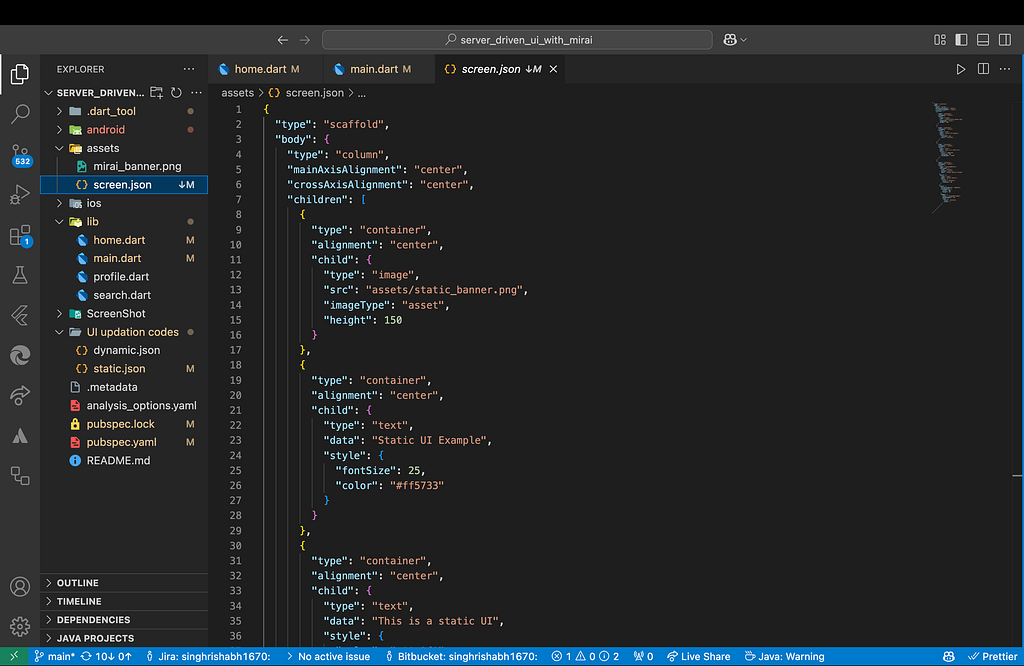
JSON File (screen.json)
{
  "type": "scaffold",
  "body": {
    "type": "column",
    "mainAxisAlignment": "spaceAround",
    "crossAxisAlignment": "center",
    "children": [
      {
        "type": "container",
        "alignment": "center",
        "child" : {
          "type": "image",
          "src": "assets/mirai_banner.png",
          "imageType": "asset",
          "height": 150
        }
      },

      {
        "type": "column",
        "crossAxisAlignment": "center",
        "children":[
          {
            "type": "container",
            "alignment": "center",
            "child" : {
              "type": "text",
              "data": "Mohamed Abdo",
              "style": {
                "fontSize": 25
              }
            }
          },
          {
            "type": "container",
            "alignment": "center",
            "child" : {
              "type": "text",
              "data": "Flutter Developer",
              "style": {
                "color": "#00a2f9",
                "fontSize": 20
              }
            }
          }
        ]
      }
    ]
  }
}
Mirai offers three methods to parse JSON into Flutter widgets, providing flexibility in how you fetch and load JSON configurations for your server-driven UI screens. Here’s a brief overview of these methods:
- Mirai.fromJson(): This method allows you to parse a JSON configuration directly from a string in your Flutter app. You can pass the JSON configuration as a string to this method, along with the BuildContext context and Mirai will parse the JSON and generate the Flutter widgets. For example:
String jsonConfig = '{ "type": "scaffold", ... }';
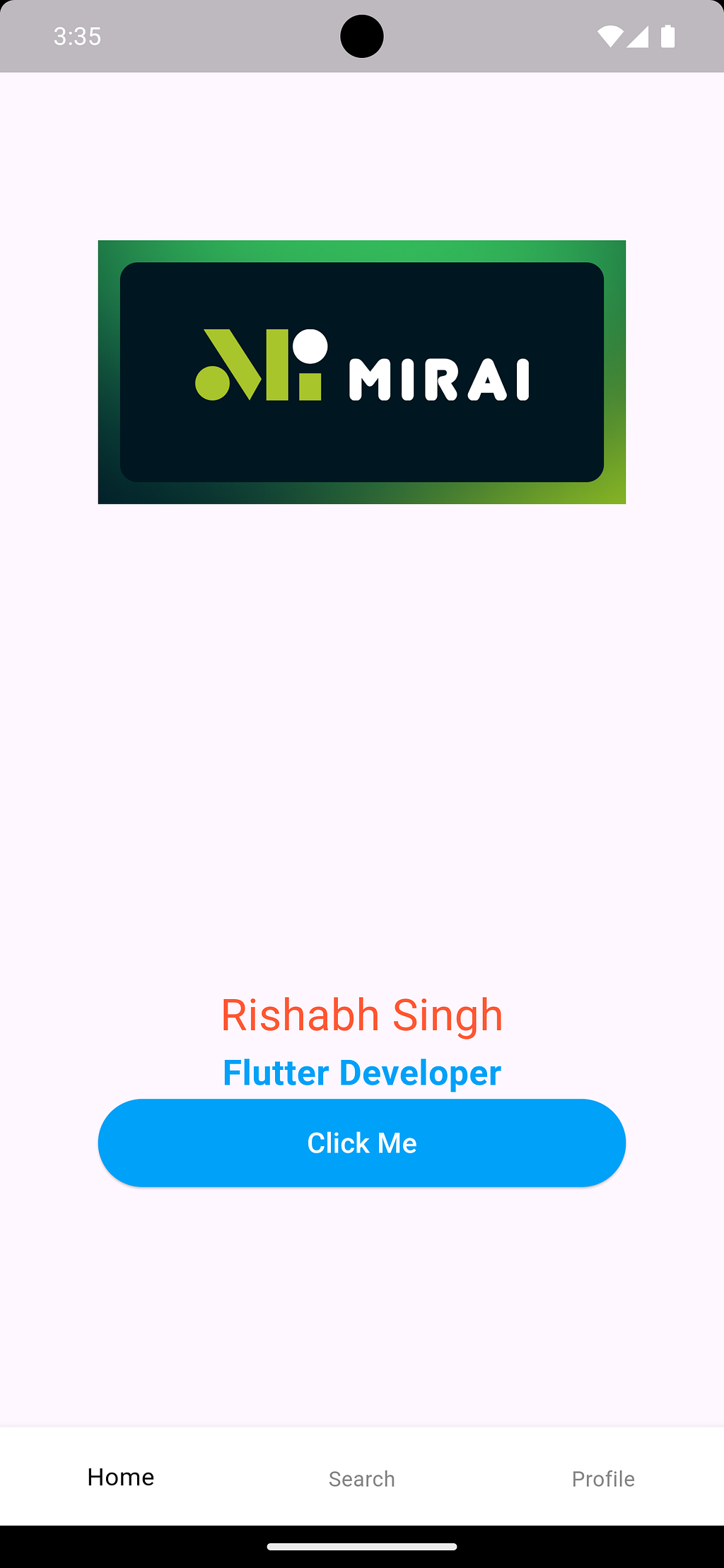
Mirai.fromJson(jsonData, context),- Mirai.fromAsset(): This method allows you to load a JSON configuration from a local asset file in your Flutter app. You can specify the asset path of the JSON configuration as a string to this method, and Mirai will load and parse the JSON, and generate the corresponding Flutter widgets. For example:
getWidget() async {
    await Mirai.fromAssets("assets/screen.json", context).then((value) {
      setState(() {
        body = value;
      });
    });
  }

  @override
  Widget build(BuildContext context) {
    return Container(
      child: body ?? const CircularProgressIndicator(),
    );
  }
Note
we can load the file of the JSON configuration as a string and decode it to JSON and use Mirai.fromJson().
For example:
Future<void> loadJsonData() async {
    final jsonString = await rootBundle.loadString('assets/screen.json');
    setState(() => jsonData = jsonDecode(jsonString));
  }

Mirai.fromJson(jsonData, context),- Mirai.fromNetwork(): This method lets you fetch the JSON configuration from a remote network source, such as an API endpoint. You can pass the URL of the JSON configuration as a string to this method, and Mirai will fetch and parse the JSON, and generate the corresponding Flutter widgets. For example:
final sourceFile =
      "https://raw.githubusercontent.com/MohamedAbd0/MiraiServerUIData/main/screen.json";

Mirai.fromNetwork(
    MiraiRequest(
       url: sourceFile,
       method: Method.get,
    ),
),
These methods provide different ways to fetch and load JSON configurations into your Flutter app, depending on your use case and requirements. You can choose the one that best fits your app architecture and workflow.
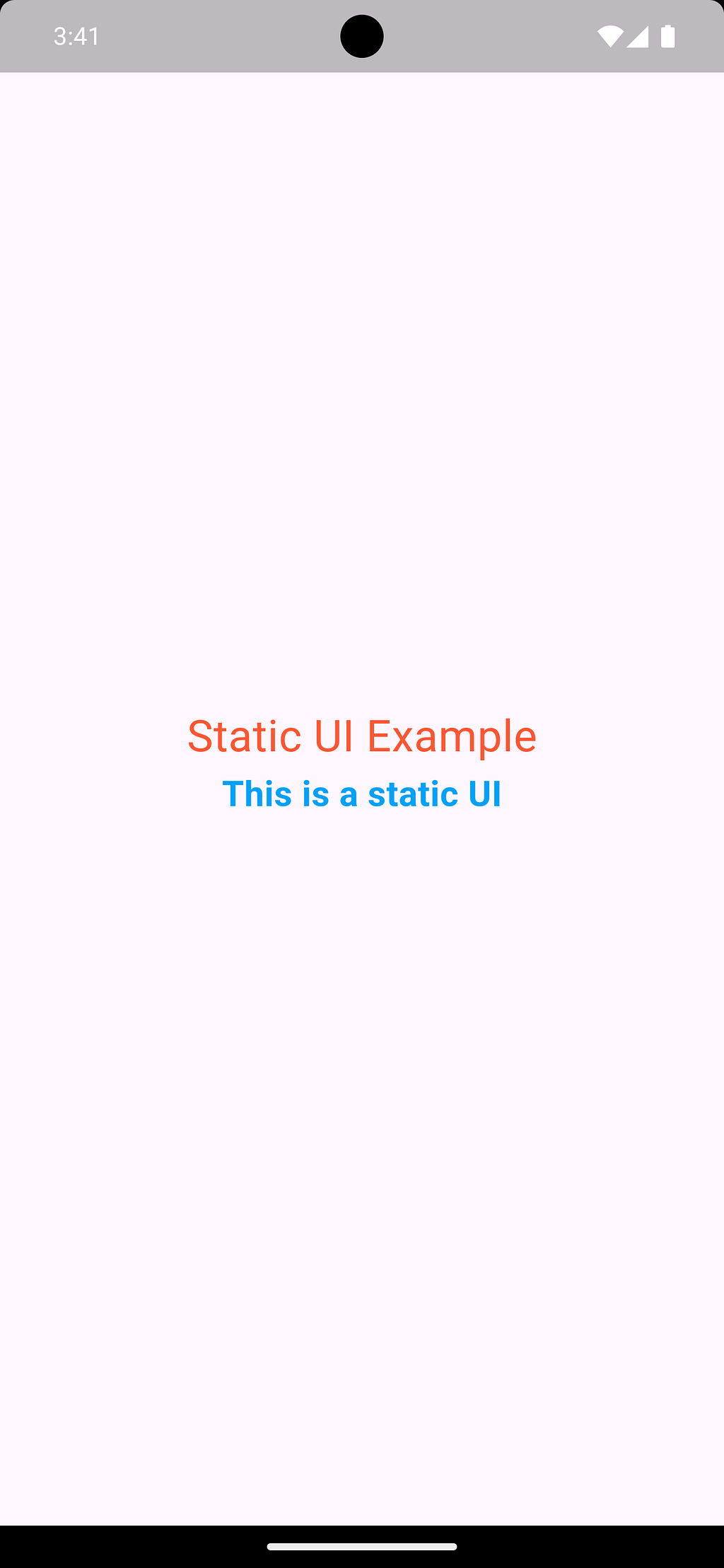
Implementation of JSON file
we will write each widget in {}and set the type value in the key of "type".
scaffold
{
    "type": "scaffold",
    "backgroundColor": "#ffffff",
    "appBar": {},
    "body": {}
    "bottomNavigationBar":{}
}
appBar
"appBar": {
      "type": "appBar",
      "color": "#ffffff",
      "title": {
        "type": "text",
        "data": "Mirai Demo"
      },
      "leading": {},
      "actions": []
    },
text
{
    "type": "text",
    "data": "Mirai Demo",
    "style": {
        "color": "#00a2f9",
        "fontSize": 20,
        "fontWeight": "w600"
    }
}
outlinedButton
{
    "type": "outlinedButton",
    "child": {
        "type": "text",
        "data": "BUTTON"
    },
    "style": {
        "padding": {
            "top": 8,
            "left": 12,
            "right": 12,
            "bottom": 8
        }
    },
    "onPressed": {}
}
elevatedButton
{
    "type": "elevatedButton",
    "child": {
        "type": "text",
        "data": "Submit"
    },
    "style": {
        "backgroundColor": "#4D00E9",
        "padding": {
            "top": 8,
            "left": 12,
            "right": 12,
            "bottom": 8
        }
    },
    "onPressed": {}
}
textButton
{
    "type": "textButton",
    "child": {
        "type": "text",
        "data": "BUTTON"
    },
    "style": {
        "padding": {
            "top": 8,
            "left": 12,
            "right": 12,
            "bottom": 8
        }
    },
    "onPressed": {}
}
iconButton
  {
    "type": "iconButton",
    "child": {
      "type": "icon",
      "iconType": "material",
      "icon": "search"
    }
  }
container
{
    "type": "container",
    "width": 50,
    "margin": {
      "top": 10,
      "bottom": 10,
      "right": 8,
      "left": 8
    },
    "decoration": {
      "color":  "#011621"
    },
    "child":{}

}
column
{
    "type": "column",
    "mainAxisAlignment": "start",
    "crossAxisAlignment": "start",
    "children": []
}
padding
{
    "type": "padding",
    "padding": {
      "left": 10, "right": 10
    },
    "child":{}
}
image
// for asset image
{
    "type": "image",
    "src": "assets/mirai_banner.png",
    "imageType": "asset",
    "height": 150
}

// for network image
{
    "type": "image",
    "src": "https://image.com/image.jpeg",
    "height": 150
}
floatingActionButton
{
    "type": "floatingActionButton",
    "backgroundColor": "#011621",
    "foregroundColor": "#ffffff",
    "buttonType": "extended",
    "icon": {},
    "child": {},
    "onPressed": {}
}
sizedBox
{
    "type": "sizedBox",
    "height": 2
}
row
{
    "type": "row",
    "children": []
}
listTile
{
    "type": "listTile",
    "height": 250,
    "leading": {},
    "title": {},
    "subtitle": {},
    "trailing": {}
}
listView
{
    "type": "listView",
    "shrinkWrap": true,
    "separator": {
      "type": "container",
      "height": 10
    },
    "children": []
}
textField
{
    "type": "textField",
    "maxLines": 1,
    "keyboardType": "text",
    "textInputAction": "done",
    "textAlign": "start",
    "textCapitalization": "none",
    "textDirection": "ltr",
    "textAlignVertical": "top",
    "obscureText": false,
    "cursorColor": "#FC3F1B",
    "style": {
        "color": "#000000"
    },
    "decoration": {
        "hintText": "Where can we reach you?",
        "filled": true,
        "icon": {
            "type": "icon",
            "iconType": "cupertino",
            "icon": "phone_solid",
            "size": 24
        },
        "hintStyle": {
            "color": "#797979"
        },
        "labelText": "Phone number*",
        "fillColor": "#F2F2F2"
    },
    "readOnly": false,
    "enabled": true
}
scrollView
{
    "type": "scrollView",
    "child": {}
}
bottomNavigationBar
{
    "type": "bottomNavigationBar",
    "unselectedItemColor": "#B489F3",
    "items": [ ]
}
card
{
    "type": "card",
    "elevation": 20,
    "borderOnForeground": true,
    "margin": {
        "top": 20,
        "bottom": 20,
        "right": 20,
        "left": 20
    },
    "child": {}
}
tabBar
{
    "type": "defaultTabController",
    "length": 3,
    "child": {
      "type": "scaffold",
      "appBar": {
        "type": "appBar",
        "title": {
          "type": "text",
          "data": "Tabbar"
        },
        "bottom": {
          "type": "tabBar",
          "tabs": [
            {
              "type": "tab",
              "text": "Red"
            },
            {
              "type": "tab",
              "text": "Red"
            },
            {
              "type": "tab",
              "text": "Red"
            }
          ]
        }
      },
      "body": {
        "type": "tabBarView",
        "children": []
      }
    }
  }
alertDialog
{
    "type": "alertDialog",
    "content": {
        "type": "padding",
        "padding": {
            "top": 0,
            "left": 12,
            "right": 12,
            "bottom": 8
        },
        "child": {
            "type": "text",
            "data": "Discard draft?",
            "align": "center",
            "style": {
                "fontSize": 14
            }
        }
    },
    "actions": [
        {
            "type": "textButton",
            "child": {
                "type": "text",
                "data": "CANCEL"
            },
            "onPressed": {
                "actionType": "navigate",
                "navigationType": "screen",
                "navigationStyle": "pop"
            }
        },
        {
            "type": "sizedBox",
            "width": 8
        },
        {
            "type": "textButton",
            "child": {
                "type": "text",
                "data": "DISCARD"
            },
            "onPressed": {
                "actionType": "navigate",
                "navigationType": "screen",
                "navigationStyle": "pop"
            }
        },
        {
            "type": "sizedBox",
            "width": 12
        }
    ]
}
we can push alertDialog by
{
    "type": "elevatedButton",
    "child": {
        "type": "text",
        "data": "SIMPLE ALERT",
        "style": {
            "color": "#ffffff"
        }
    },
    "onPressed": {
        "actionType": "navigate",
        "navigationStyle": "push",
        "navigationType": "dialog",
        "widgetJson": {
            "type": "alertDialog",
            "content": {},
            "actions": []
        }
    }
}
Custom Parser
You can also specify your custom Parsers in Mirai.initialize and Dio instance.
void main() async {
  final dio = Dio()
  await Mirai.initialize(
    parsers: const [
      ExampleScreenParser(),
    ],
    dio: dio,
  );
  runApp(const MyApp());
}