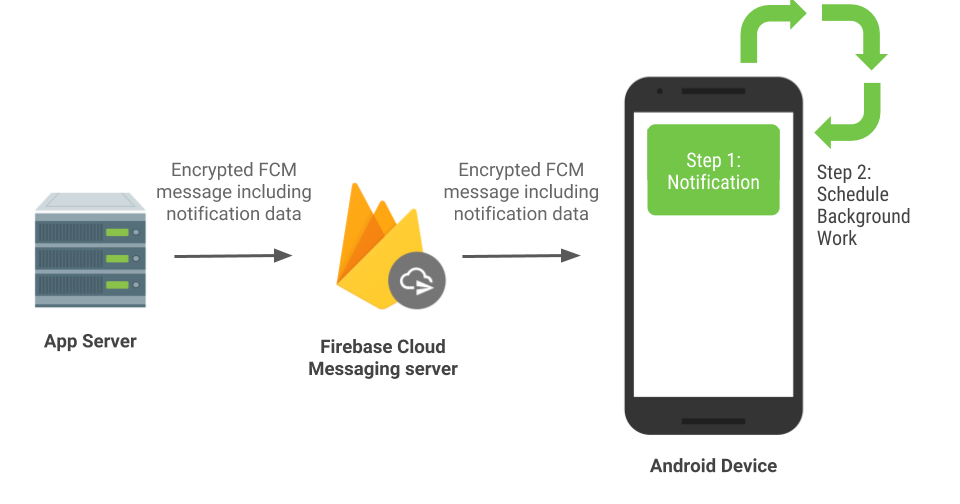
Push notifications are a crucial feature for modern apps, keeping users engaged and informed. In this blog, we’ll walk through adding push notifications to a Flutter app using Firebase Cloud Messaging (FCM).
Let’s break it down step by step! 🛠️
Step 1: Set Up Firebase Project
- Create a Firebase Project: Go to Firebase Console → Add Project → Follow the setup.
- Register Your App: Add your app’s package name.
- Download and Add the Config Files:
- For Android: Add google-services.json in android/app.
- For iOS: Add GoogleService-Info.plist in ios/Runner.
4. Update Android Files:
// android/build.gradle
classpath 'com.google.gms:google-services:4.4.0'

// android/app/build.gradle
apply plugin: 'com.google.gms.google-services'
5. Update iOS Files:
<!-- ios/Runner/Info.plist -->
<key>FirebaseAppDelegateProxyEnabled</key>
<false/>
Run flutter pub add firebase_core firebase_messaging to install dependencies.
Step 2: Initialize Firebase in Flutter
import 'package:firebase_core/firebase_core.dart';
import 'package:flutter/material.dart';

void main() async {
  WidgetsFlutterBinding.ensureInitialized();
  await Firebase.initializeApp();
  runApp(MyApp());
}
Step 3: Configure Firebase Messaging
Create a service to handle notifications:
import 'package:firebase_messaging/firebase_messaging.dart';

class NotificationService {
  final FirebaseMessaging _firebaseMessaging = FirebaseMessaging.instance;

  void initNotifications() {
    _firebaseMessaging.requestPermission();
    FirebaseMessaging.onMessage.listen((RemoteMessage message) {
      print('Foreground message received: ${message.notification?.title}');
    });

    FirebaseMessaging.onMessageOpenedApp.listen((RemoteMessage message) {
      print('Notification clicked: ${message.notification?.body}');
    });
  }
}
Step 4: Get and Print the Device Token
You need the device token to send notifications:
void getToken() async {
  String? token = await FirebaseMessaging.instance.getToken();
  print("FCM Token: $token");
}
Step 5: Update Main App
Use the notification service in your main app:
class MyApp extends StatelessWidget {
  final NotificationService _notificationService = NotificationService();

  @override
  Widget build(BuildContext context) {
    _notificationService.initNotifications();
    getToken();

    return MaterialApp(
      home: Scaffold(
        appBar: AppBar(title: Text('FCM Push Notifications')),
        body: Center(child: Text('Waiting for notifications...')),
      ),
    );
  }
}
Step 6: Test Notifications
- Run Your App: Launch the app on a real device (not emulator).
- Send a Test Notification: Go to the Firebase console → Cloud Messaging → New Notification → Add title/body → Send.
- Verify the Notification: You should see the message in the console or as a push notification.